Cleaning Up Windows 11 Keyboard Layouts, Dead Keys, and Ghost ENG Trays
To delete an extra ENG (US) or ENG (UK) keyboard layout that does not appear in Windows 11 Settings, open Settings → Time & language → Language & region, click the ... menu next to English → Language options → Add a keyboard, add that exact ghost layout manually, and immediately click Remove; then disable Left Alt + Shift under Typing → Advanced keyboard settings → Input language hot keys so games and design tools stop flipping layouts mid-session.
Few operating-system quirks waste more quiet minutes than the bottom-right corner of the Windows 11 taskbar. Install a Steam game, open remote desktop, or add a second language pack, and suddenly pressing Win + Space cycles through three nearly identical English entries plus a CJK or phonetic IME. Worse, if you enabled United States-International to type Spanish, French, or German accents, every single apostrophe (') or quotation mark (") turns into a dead key that waits for your next letter before appearing on screen.
Removing Ghost ENG Layouts and Disabling Hotkey Traps
Windows 11 stores active session preload layouts separately from the visible language list inside Microsoft's Text Services Framework (TSF). When an app registers a temporary 0409 (US) or 0809 (UK) keyboard handle, that layout shows up in the taskbar switcher even though Language & region lists only one keyboard.
Adding and removing the matching keyboard under Language options forces Windows to flush both registry lists cleanly without touching PowerShell. Right after cleaning the list, open Settings → Time & language → Typing → Advanced keyboard settings → Input language hot keys, select Between input languages → Change Key Sequence, and set both Switch Input Language and Switch Keyboard Layout to Not Assigned. That single change stops Alt + Shift in Figma or Ctrl + Shift in Excel and shooters from rotating your keyboard behind your back (if your @ and " keys are already transposed, check fixing wrong keyboard characters on Windows and Mac).
Comparing Everyday Input Methods on Windows 11
Once the ghost layouts are gone, choosing an input method on Windows 11 comes down to whether your day stays inside one language at a time or jumps constantly across English-heavy tools and bilingual chat:
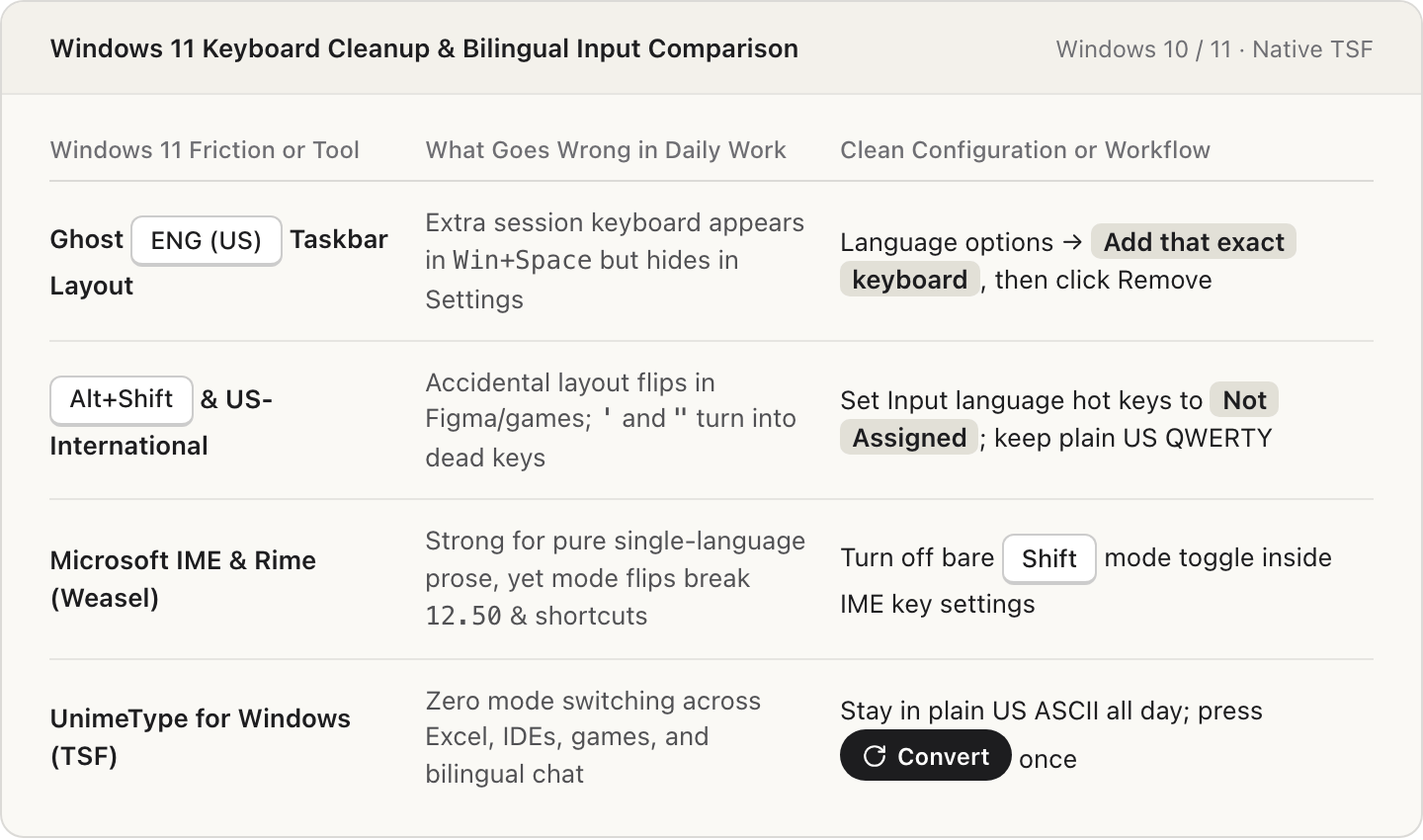
Built-in Microsoft Pinyin and Microsoft Japanese IME ship preinstalled, start quickly, and handle pure Chinese or Japanese paragraphs well once you turn off bare Shift mode toggling inside their key settings. Power users who want zero cloud telemetry and custom double-Pinyin or schema rules often install open-source Rime (Weasel) on Windows. Meanwhile, United States-International works for occasional French or Spanish emails if you can tolerate pressing Space after every quote mark in code editors and terminals.
All of those options share one remaining bottleneck: they still split your computer into modes. Reply to a message in Chinese, Japanese, Hindi, or Russian, Alt + Tab back to Excel to enter 12.50 or into Overleaf to type \cite{}, and the leftover IME mode intercepts your punctuation and single-key shortcuts.
Keeping Windows 11 in Plain US English With On-Demand Convert
We built UnimeType for Windows as a native Windows 10/11 TSF input method that removes mode switching altogether. Every window—Excel, Figma, VS Code, browser tabs, and full-screen games—stays in standard half-width US English all day long, with zero dead keys on ' or " and zero candidate bars popping up on Shift.
When you write a bilingual message in Teams, Slack, Discord, or WhatsApp Desktop, you type the whole sentence straight through in plain ASCII—whether that is Pinyin + English, Romaji + English, Hinglish, Arabizi, Cyrillic translit, or unaccented Spanish and German:
Q4 budget sheet updated in Excel, manana revisamos los numeros en Slack at 10am
Press your Convert shortcut once at the end of the line, and UnimeType rewrites the field in place as Q4 budget sheet updated in Excel, mañana revisamos los números en Slack at 10am—restoring Spanish accents while keeping English terms untouched. Switch back to Excel or a game half a second later, and your keyboard is already plain US English.
Ordinary typing on Windows generates 0 Bytes of network traffic, and sensitive strings are masked on-device before any cloud request (privacy and protected content). Because desktop PCs have ample RAM and cooling, you can also connect UnimeType on Windows to LM Studio or Ollama on 127.0.0.1 with our open-weight 0.8B, 4B, or 9B models for 100% offline conversion (see desktop setup and shortcuts). Keep Microsoft IME or Rime around for long single-language essays, and leave daily multi-window work on one predictable US English layout.
Download UnimeTypeiOS, Android, macOS, Windows, Linux, and ChromeOS
View downloadsNext: I Tested the Top Android and Samsung Keyboard Apps in 2026, and Bilingual Chat Split Them in Two