I Tested the Top Android and Samsung Keyboard Apps in 2026, and Bilingual Chat Split Them in Two
Unlike iOS, Android actually lets third-party keyboards breathe. You can resize the panel height to the millimeter, pin a dedicated number row above QWERTY, hold keys for secondary symbols, and swap default input methods in two taps.
Over the past three weeks I rotated five Android keyboards on a Pixel and a Galaxy phone across daily work: Google's Gboard, Microsoft SwiftKey, Samsung Keyboard, the open-source FUTO Keyboard, and our own keyboard, UnimeType. Replying to plain English emails or sliding through Spanish and German texts, the mainstream options felt mature and fast. Five minutes later, jumping from an English Google Sheet or Slack channel into a WhatsApp chat in Hindi, Chinese, or Japanese split those apps into two very different workflows.
Where Gboard, SwiftKey, Samsung Keyboard, and FUTO Win
Before changing anything, Gboard earns its spot as the default on Pixel and most Android phones for good reason. Its gesture glide typing, inline clipboard history, and on-device voice dictation are responsive, and Google's Gboard multilingual typing guide lets you type two Latin-alphabet languages—such as English and Spanish—on one shared layout without touching a switch key.
On Galaxy phones, Samsung Keyboard has caught up in hardware integration even if its raw autocorrect trails Gboard. If you use an S Pen on a Galaxy Ultra, rely on split-screen foldable layouts, or customize key spacing through Samsung's Good Lock and Keys Cafe modules, keeping Samsung Keyboard around makes practical sense. Microsoft SwiftKey, meanwhile, remains the strongest pick for aggressive next-word prediction and up to five simultaneous Latin-script languages on Microsoft's official SwiftKey keyboard app. And if your top priority is a local-only, open-source English swipe keyboard with zero cloud services, FUTO Keyboard is a clean standalone option.
Why Cross-Script Bilingual Typing Still Breaks Flow on Android
The trouble starts the moment your second language does not use the 26-letter Latin alphabet. Pair English with Hindi, Chinese, Japanese, Arabic, or Russian, and Gboard, SwiftKey, and Samsung Keyboard all fall back to separate panels or word-by-word Spacebar traps.
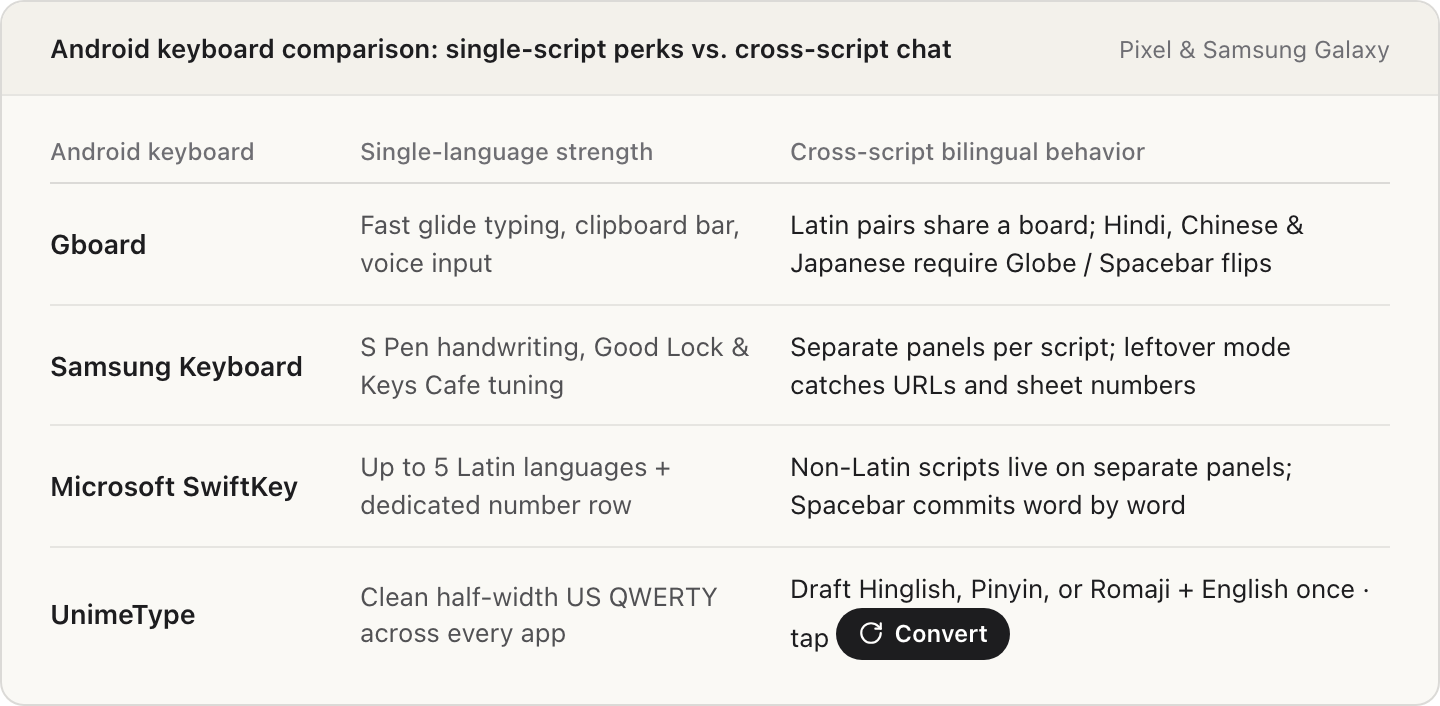
Try sending a normal workplace message in WhatsApp like "kal subah release notes bhej dena, client call 11 baje hai" ("send the release notes tomorrow morning, the client call is at 11") or "明天上午和 design team 过一下 onboarding". On a phonetic Hindi or Pinyin panel, hitting the Spacebar tries to convert release, client, or onboarding into Devanagari or Hanzi candidates unless you manually toggle the Globe key or swipe the Spacebar four times in a single sentence (we traced why mobile keyboards hit this boundary in why bilingual keyboards still need the Globe key).
App switching adds a second layer of friction. Finish a message in Chinese, Japanese, or Hindi on WhatsApp, jump over to Chrome, Termux, or Google Sheets to enter $18.50 or a search flag, and the leftover non-English panel intercepts your first keystrokes before you notice the keyboard header.
Staying on One English QWERTY Panel With Sentence Convert
We built UnimeType on Android around a simpler rule: leave your phone on one clean English QWERTY layout all day, and separate typing from script conversion.
Instead of fighting a live candidate bar on every Spacebar press, I type the entire bilingual sentence straight through in plain ASCII letters—mixing English terms with Hinglish, Pinyin, Romaji, Arabizi, or Russian translit:
kal subah release notes bhej dena, client call 11 baje hai
When the thought is complete, I tap Convert once in the top bar. The Hindi words turn into कल सुबह release notes भेज देना, client call 11 बजे है, while release notes and client call stay untouched in English. Ten seconds later, when I switch to Gmail, Slack, or a browser URL bar, the keyboard underneath my thumbs is already standard half-width English. There is no Globe key cycle to check and no Spacebar surprise.
Enabling a new keyboard on Android takes thirty seconds under Settings → System → Keyboard → On-screen keyboard (or General management → Keyboard list and default on Samsung One UI; see our Android setup steps). During ordinary typing, UnimeType sends 0 Bytes over the network. Network calls happen only when you tap Convert, after an on-device GDPR filter masks card numbers, API keys, and passwords locally and routes the draft through zero-data-retention (zdr: true) endpoints, covered in privacy and protected content.
Android makes it effortless to keep two keyboards enabled side by side via the corner keyboard switcher icon. Keep Gboard or FUTO around for one-handed English glide typing or voice dictation while walking, and switch your daily bilingual chat to a fixed English layout where one tap handles the script change.
Download UnimeTypeiOS, Android, macOS, Windows, Linux, and ChromeOS
View downloadsNext: I Tested Every Major iPhone Keyboard App in 2026, and Bilingual Typing Split Them in Half