I Tested Every Major iPhone Keyboard App in 2026, and Bilingual Typing Split Them in Half
Whenever someone asks me which keyboard app works best on an iPhone, my first question back is whether they type in one writing system or two.
Last month I spent two weeks rotating through the top keyboards in the App Store on my daily phone: Apple's stock iOS 18 keyboard, Google's Gboard, Microsoft SwiftKey, and our own keyboard, UnimeType. Answering pure English Slack threads or iMessages, all four got the job done. Ten minutes later, jumping from an English Jira ticket in Safari to a family WhatsApp chat in Chinese—or trying to slip two English product terms into the middle of a sentence—split those keyboards into two completely different categories.
Where Apple Keyboard, SwiftKey, and Gboard Actually Win
Before installing anything from the App Store, Apple's built-in iOS keyboard deserves credit for three things third-party extensions still cannot beat. It wakes up with zero frame delay on older devices, never has to yield control when you tap a password field or banking prompt, and integrates trackpad-mode cursor dragging on the Space bar with clean haptic feedback. With iOS 18, Apple also expanded simultaneous bilingual typing on a single layout for Latin-alphabet pairs like English and Spanish or English and French, documented in Apple's iPhone keyboard language guide.
If your main complaint with Apple's keyboard is the missing number row or aggressive autocorrect during one-handed thumb gliding, Microsoft SwiftKey is currently the strongest mainstream replacement on iOS. Unlike Gboard—whose iOS app has gone long stretches without major feature updates even while Android Gboard stays polished—SwiftKey still receives regular iOS maintenance, offers an optional dedicated number row at the top of the panel, and learns two Latin languages side by side without forcing you to tap a switch key.
Gboard still holds a loyal following for one specific habit: fast gesture glide typing paired with quick multilingual dictionary lookups, covered in Google's Gboard iPhone setup documentation. If you write exclusively in English, Spanish, German, or French and prefer Google's swipe curve over Apple's QuickPath, Gboard remains comfortable despite its aging iOS interface.
Why Cross-Script Bilingual Chat Still Forces the Globe Key
The moment your daily pair crosses out of the Latin alphabet—English plus Chinese, English plus Japanese, English plus Hindi, or English plus Arabic—Apple Keyboard, Gboard, and SwiftKey all run into the exact same wall.
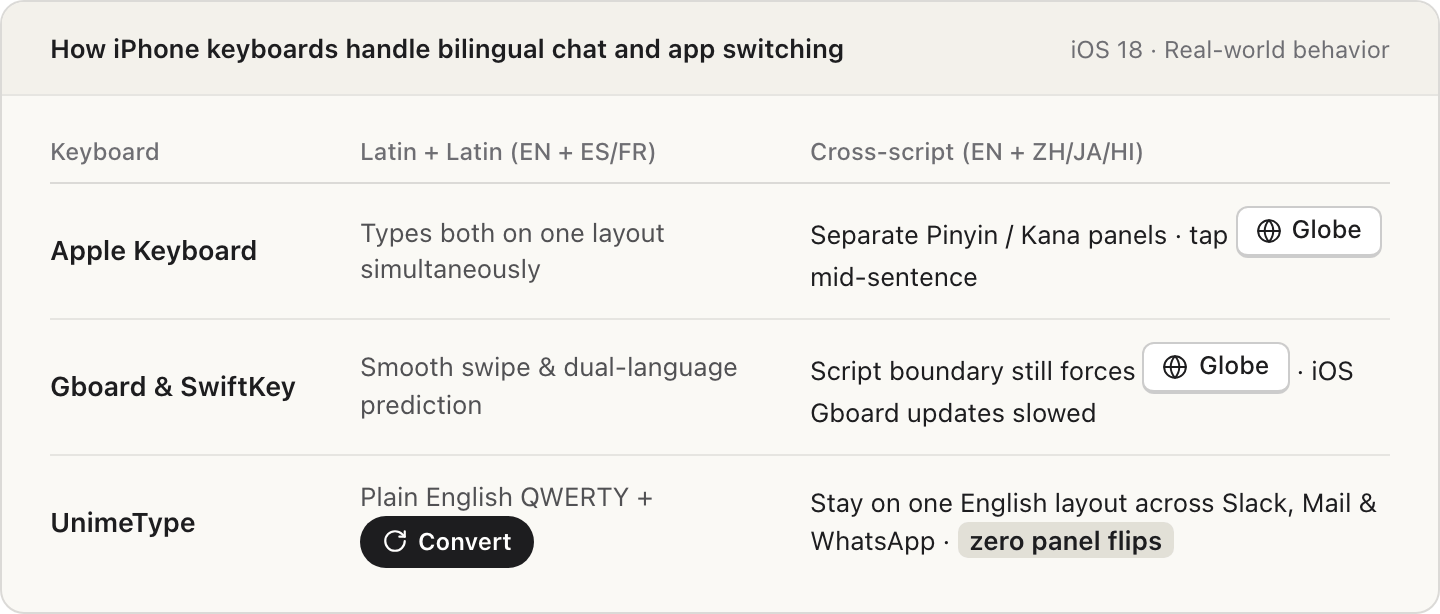
Dual-language prediction on traditional mobile keyboards only works when both languages share the same physical keys on screen. When one language uses Pinyin, Kana, Devanagari, or Arabic, the keyboard treats them as separate rooms. Replying in WhatsApp with "明天下午和 team 过一下 onboarding" ("let's go over onboarding with the team tomorrow afternoon") means flipping between Pinyin and English four times in ten words, or fighting the Pinyin candidate bar so it stops slicing onboarding into random syllables.
App hopping makes that state mismatch worse. You finish a message in Chinese or Japanese, swipe over to Mail or Linear to type Q3 margin or search a ticket ID, and watch the leftover IME panel intercept your first five keystrokes. If you keep a third keyboard installed—say Emoji plus two languages—tapping the bottom-left Globe key turns into a guessing game every time you switch apps (we dug into the layout math behind this in why bilingual keyboards still need the Globe key).
Staying on One English Layout With Sentence Convert
That exact friction is why we built UnimeType around a different division of labor: keep the iPhone locked to one clean English QWERTY layout all day, and separate typing from script conversion.
Instead of watching a live candidate strip after every two letters, I type the entire bilingual thought straight through in plain Latin letters—English words and romanized Pinyin, Romaji, Hinglish, or Arabizi together:
ming tian morning he design team guo yi xia onboarding flow
When the sentence is done, I tap Convert once in the toolbar. The Chinese phrases turn into 明天 morning 和 design team 过一下 onboarding flow, while the English terms stay untouched. Five seconds later, when I switch to Safari, Gmail, or Slack to write pure English, the keyboard is already a plain English QWERTY board. There is no leftover input mode to check and no Globe key cycle to manage.
Because iOS sandboxes third-party keyboards by default, enabling on-demand conversion requires turning on Allow Full Access in Settings (see our setup and shortcuts guide). On iPhone, UnimeType sends 0 Bytes over the network during ordinary typing; network requests fire only when you tap Convert, after an on-device GDPR filter masks card numbers, API keys, and passwords locally and sends the remaining text under zero-data-retention (zdr: true) rules, detailed in privacy and protected content.
No single iPhone keyboard wins every scenario. If you type purely in English or Spanish and want a permanent number row with swipe typing, install SwiftKey. If you work on a strictly managed corporate iPhone or type long passages filled with rare personal names where character-by-character candidate picking feels safer, keep Apple's stock keyboard enabled right alongside it. For anyone whose thumbs spend all day bouncing between English work apps and non-Latin chats, retiring the Globe key changes how every reply feels.
Download UnimeTypeiOS, Android, macOS, Windows, Linux, and ChromeOS
View downloadsNext: You Already Know What You Want to Say. Why Check Your Keyboard State First?