Why Predictive Text Learns Your Worst Typos, and How to Reset It on iPhone and Android
To wipe bad keyboard suggestions on an iPhone, open Settings → General → Transfer or Reset iPhone → Reset → Reset Keyboard Dictionary; on Android, open Gboard Settings → Privacy → Delete learned words and data (or toggle off Auto-correction under Text correction, and Auto replace inside Samsung Keyboard settings). Doing both clears mistyped spellings and stops the Spacebar from rewriting romanized bilingual words mid-sentence.
Predictive bars start out helpful during the first month on a new phone, then quietly decay when you type in two languages. Type a fast Hinglish, Pinyin, Romaji, or Spanish phrase on an English keyboard three times, dismiss a rushed typo in Slack, or paste an internal project acronym, and the on-device language model records that string as a preferred habit. Weeks later, the center suggestion slot keeps offering misspelled words or awkward half-converted fragments every time you type a normal English email.
Resetting Poisoned Predictive Suggestions on iPhone
Turning off Auto-Correction under Settings → General → Keyboard stops iOS from replacing words when you hit Space (covered step by step in our guide to turning off iPhone autocorrect), yet the gray three-word bar above QWERTY continues surfacing old mistakes until you clear its learned cache.
Apple buries that reset inside system transfer menus rather than keyboard settings. Follow Apple's official iPhone keyboard settings reference and open Settings → General → Transfer or Reset iPhone → Reset → Reset Keyboard Dictionary, then enter your device passcode. Nothing happens to your photos, contacts, or saved Text Replacement shortcuts, while every mistyped suggestion disappears from the predictive strip immediately. If you prefer a cleaner screen without the three-slot bar at all, flip off Predictive Text under Settings → General → Keyboard right afterward.
Turning Off Autocorrect and Clearing Learned Words on Android and Samsung
Android separates automatic Spacebar replacement from the suggestion strip, and Pixel and Galaxy phones put those switches in two different places:
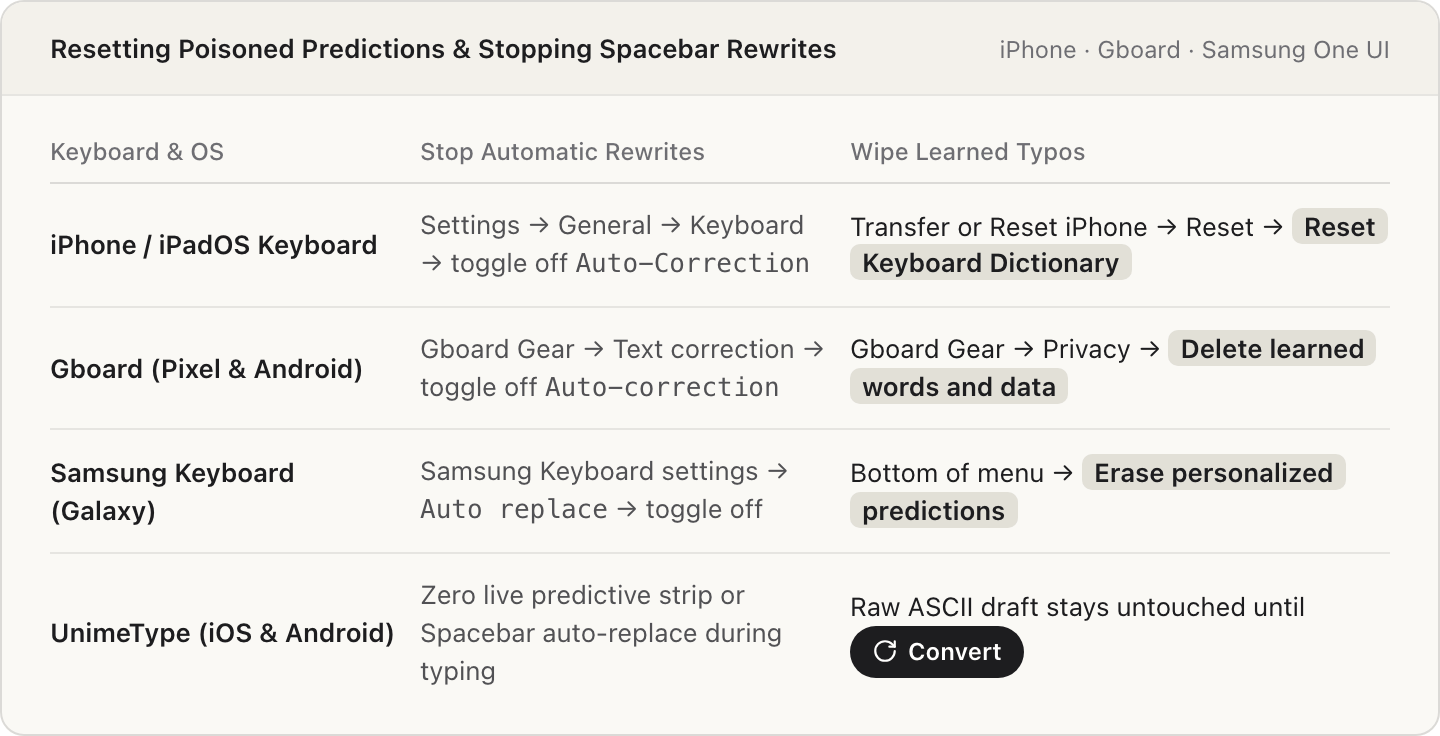
On Gboard (Pixel, Motorola, OnePlus, Xiaomi), open a text field, tap the gear icon in the keyboard strip, and enter Text correction. Toggle off Auto-correction so pressing Space never swaps a romanized word for a random English noun, while leaving Show suggestion strip enabled if you still want tap-to-accept completions. To purge years of bad personal predictions on Google's Gboard keyboard, open Gboard Settings → Privacy → Delete learned words and data and enter the confirmation code on screen.
On Samsung Galaxy phones running One UI, head to Settings → General management → Samsung Keyboard settings. Inside that menu, keep Predictive text on if you want emoji or word hints, and open Auto replace to turn off automatic Spacebar substitutions for English or individual secondary languages. Scroll to the bottom and tap Erase personalized predictions to flush old typos out of One UI's local store.
Avoiding Dictionary Pollution in Bilingual Chats Altogether
Even after a clean reset, any live predictive keyboard faces the same structural trap within two weeks if you write in two languages on one QWERTY panel. Type "kal subah client call ke baad invoice bhej dena" ("send the invoice after tomorrow morning's client call") or "ming tian review PR" on an English keyboard, and the local predictor either flags every non-English syllable or memorizes raw Latin phonetic strings as custom English vocabulary.
We designed UnimeType so daily bilingual typing never builds a polluted personal keystroke dictionary in the first place. On both iPhone and Android, the keyboard stays in plain, untouched US English while you type—no three-word predictive strip guessing your next syllable, and no Spacebar auto-replace changing what your thumbs pressed:
kal subah client call ke baad invoice bhej dena
Once the full sentence is on screen, one tap on Convert turns the Hindi words into कल सुबह client call के बाद invoice भेज देना while leaving client call and invoice intact in English. Switch over to Gmail, Chrome, or Google Sheets ten seconds later, and your keyboard is still clean half-width English without leftover candidates.
Setup takes under a minute in system keyboard settings (see mobile setup and shortcuts), and ordinary typing sends 0 Bytes over the network while masking sensitive numbers locally before any on-demand conversion (privacy and protected content). Keep Gboard or iOS native predictive text around for one-handed pure English notes, and move mixed-language chats to a keyboard that never rewrites your words behind your back.
Download UnimeTypeiOS, Android, macOS, Windows, Linux, and ChromeOS
View downloadsNext: I Tested the Top Android and Samsung Keyboard Apps in 2026, and Bilingual Chat Split Them in Two