How to Turn Off Autocorrect on iPhone and Android (When Bilingual Typing Keeps Rewriting Your Words)
Nothing derails a ten-second reply faster than watching the Space bar rewrite a word you spelled intentionally. Last week I typed ming tian morning kan xia PR to a colleague in Slack while my iPhone was still on its English layout. By the time my thumb hit Send, iOS had quietly turned the line into mint train morning can xia PR.
If you only write in English, modern autocorrect is mildly bossy. If you write in two languages, type romanized words on a QWERTY keyboard, or drop technical identifiers and proper names into everyday chat, it feels like someone grabbing the steering wheel every third word. Here are the exact toggles to shut it off on iPhone and Android, followed by how to keep bilingual messages clean without babysitting the Globe key.
Exact Toggles to Turn Off Autocorrect on iPhone and Android
Turning off the main switch takes ten seconds, though iOS splits text meddling across three separate toggles that are worth reviewing together:
- On iPhone or iPad (iOS 17 & iOS 18): Open Settings → General → Keyboard and flip Auto-Correction off, documented in Apple's iPhone Auto-Correction support article. While you are on that screen, look at two neighboring switches:
- Show Predictions Inline: Turning this off stops gray ghost completions from appearing ahead of your cursor and prevents iOS from retroactively changing words two tokens back. You can still leave Predictive Text on if you like seeing three passive word suggestions in the top bar without automatic Space-bar replacement.
- Smart Punctuation: If you write code snippets, CLI flags, or Markdown in Slack and Notes, turn this off so
--stops turning into an em-dash and straight quotes'api'stop curling into‘api’.
- On Android (Gboard & Pixel): Open Settings → System → Keyboard → On-screen keyboard → Gboard → Text correction, then toggle off Auto-correction (also accessible from the gear icon on Gboard's top strip, covered in Gboard's help center). On Samsung Galaxy phones using Samsung Keyboard, go to Settings → General management → Samsung Keyboard settings and switch off Predictive text or Auto replace.
Why Bilingual Typists Still Get Stuck After Flipping the Switch
Shutting off Auto-Correction stops false English substitutions immediately, yet anyone who texts across English and a second script quickly notices the other half of the problem.
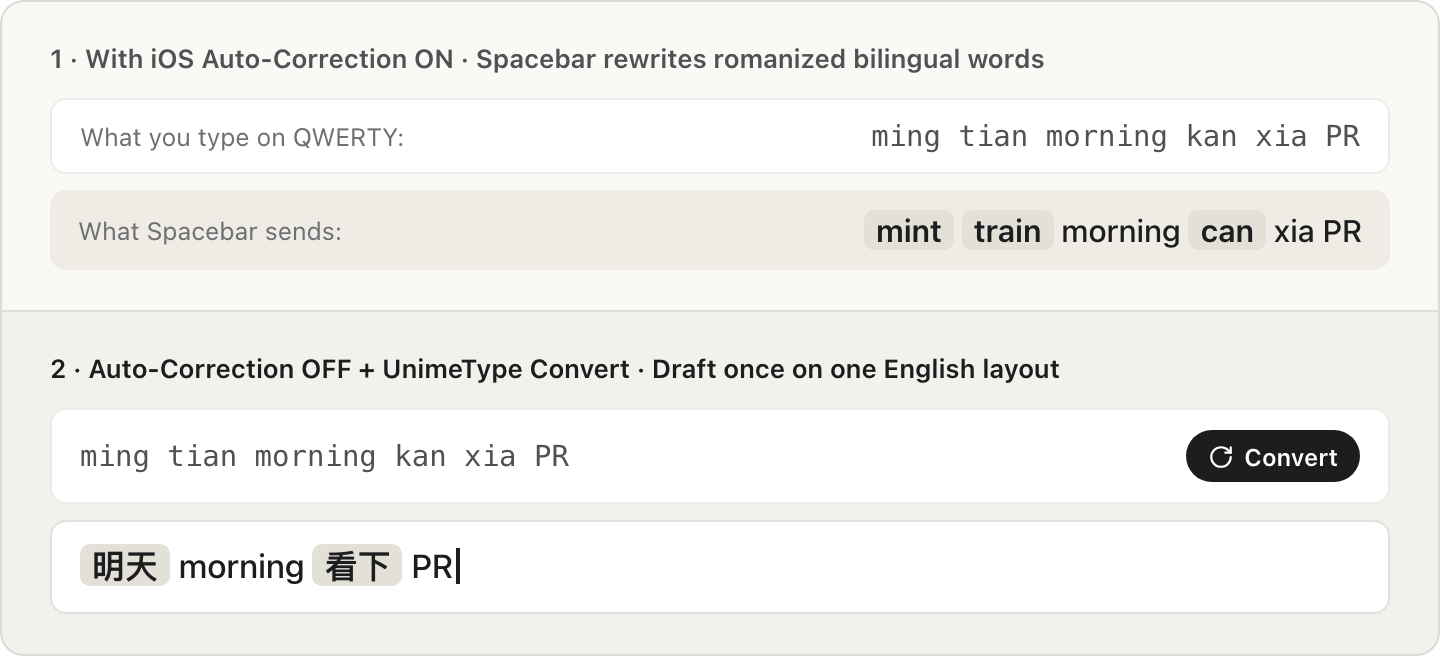
Why were romanized words sitting on an English keyboard in the first place? Because flipping panels with the bottom-left Globe key inside a short bilingual message is tedious. When you want to write one mixed sentence in WhatsApp or Slack—whether Chinese Pinyin plus English, Japanese Romaji plus English, or Hindi Hinglish plus English—you have two frustrating choices on standard keyboards:
- Stay on the native IME panel, where English words like
onboarding,sprint, orbuildget chopped into phonetic syllables by the candidate bar unless you switch back and forth mid-sentence. - Stay on the English panel, where Auto-Correction rewrites every non-English syllable on Space—and even with Auto-Correction turned off, your recipient has to read raw romanized text instead of proper native script.
Even dual-language Latin keyboards (such as Spanish-English or French-English on iOS) run into grammar-engine tug-of-war when two languages share similar short words: type no se si el build paso quickly and an aggressive corrector will happily drag half the phrase toward English nouns.
Raw English Drafting First, On-Demand Convert Second
After years of toggling Auto-Correction off and on, we designed UnimeType around a simpler rule: never touch a single character while your thumbs are typing.
On UnimeType, your phone stays on one standard English QWERTY keyboard across Mail, Safari, Slack, and WhatsApp. Every letter, hyphen, quote mark, and variable name lands on screen verbatim with zero inline popups, zero Space-bar hijacks, and 0 Bytes of network activity while you type.
When a sentence mixes your native language with English, you type the whole thought straight through on that same calm English layout:
ming tian morning kan xia PR, ran hou sync design spec
Tap Convert once at the end of the line. UnimeType reads the full sentence context, converts the Chinese words into 明天 morning 看下 PR,然后 sync design spec, and leaves morning, PR, and sync design spec untouched. Five seconds later, when you hop over to Safari or Terminal SSH to type pure English commands or identifiers, the keyboard is already a plain, non-interfering English layout (setup takes under a minute in setup and shortcuts).
Whenever you tap Convert on mobile, an on-device GDPR filter masks card numbers, API keys, and passwords before sending the remaining text over encrypted HTTPS with strict zero data retention (zdr: true), explained in privacy and protected content. If you mostly write rapid one-handed English prose and rely on thumb-slop correction, leave Apple's stock keyboard in your rotation with Auto-Correction enabled; if your day mixes two languages and technical terms, turning off automatic Space-bar rewrites gives you back control of your own sentences.
Download UnimeTypeiOS, Android, macOS, Windows, Linux, and ChromeOS
View downloadsNext: You Already Know What You Want to Say. Why Check Your Keyboard State First?