How I Stopped Fighting Japanese and English Input Switching on a US Mac
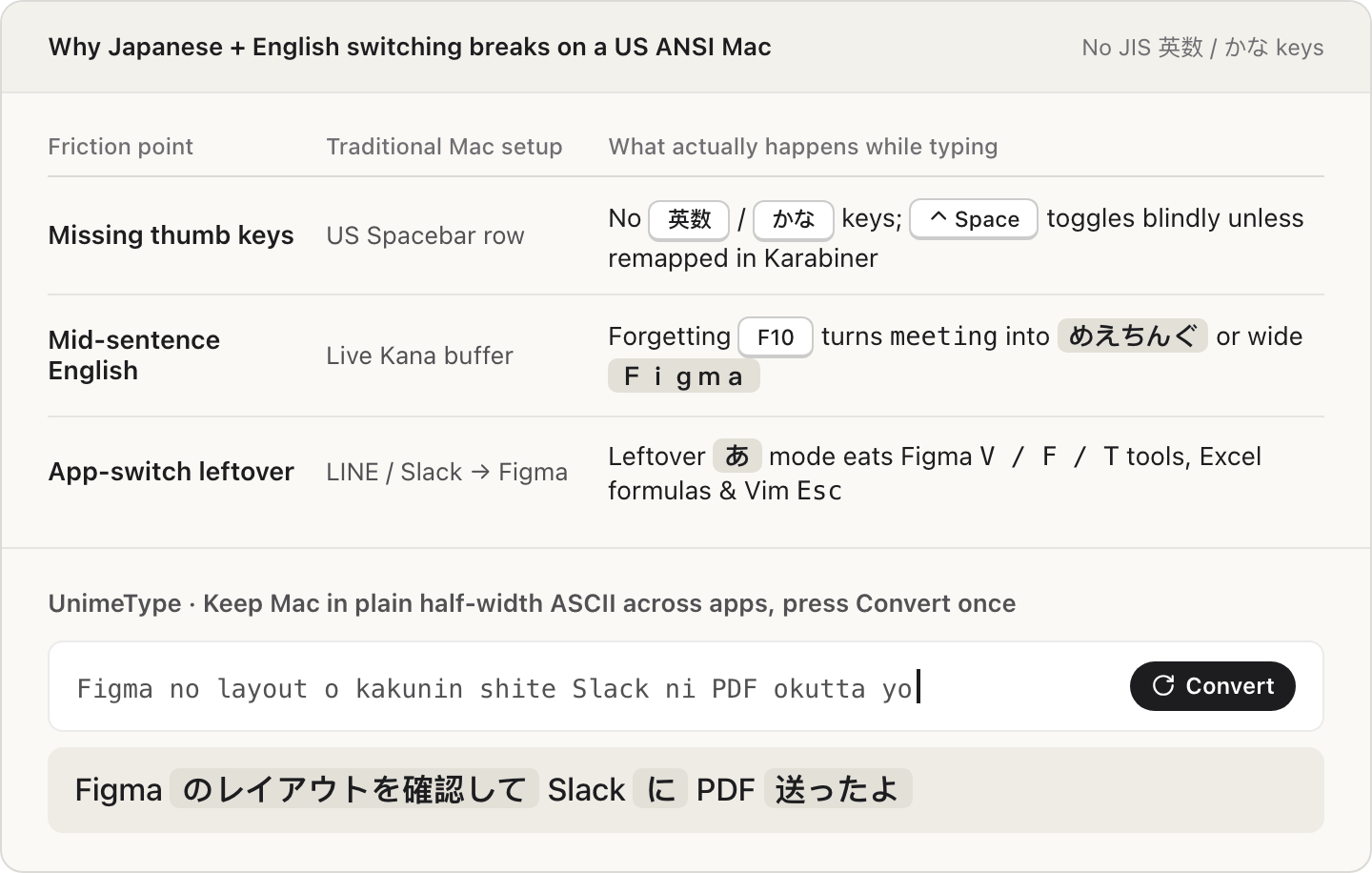
Anyone who types both Japanese and English on a US-layout MacBook eventually hits the exact same wall. You finish replying to a message in LINE or Slack, Cmd + Tab back into Figma to nudge a frame, press V or T to grab a tool, and instead of switching tools a tiny underlined ゔ or t appears in the corner of your screen. Ten minutes later you try to write kyou wa Tokyo de meeting ga arimasu in Slack, forget to switch modes before the English word, and watch meeting dissolve into めえちんぐ — or worse, accidentally cycle into Full-width Alphanumeric mode and paste wide Figma letters that break every URL and spreadsheet formula they touch.
If you have ever wondered why native typists in Tokyo seem to switch effortlessly without looking at the menu bar, the answer is physical hardware. Domestic Japanese (JIS) MacBooks place two dedicated one-way thumb keys right beside the Spacebar: 英数 on the left always forces half-width English, and かな on the right always forces Japanese Kana. Because each key is idempotent rather than a blind toggle, your left thumb can tap 英数 before every shortcut without ever checking whether the Mac was already in English.
On a US ANSI MacBook — or an external mechanical keyboard like an HHKB, Keychron, or Realforce ANSI board — both of those thumb keys are gone. All you get by default is Control + Space, which cycles blindly through your active input modes while your eyes are down on the cursor.
Clean Up Three macOS Japanese Settings First
Before installing anything extra, three checkboxes inside macOS Japanese Input settings remove roughly half of the daily accidents on a US keyboard.
Open System Settings → Keyboard → Text Input → Input Sources → Edit → Japanese – Romaji:
- Uncheck "Full-width alphanumeric" (
全角英数) under Input Modes. Leaving onlyHiraganaandAlphanumericchecked guarantees thatControl + Spacecan never drop you into the wideABC123mode that breaks Markdown links, Excel formulas, and terminal commands. - Decide whether to turn on "Use the Caps Lock key to switch to and from ABC." If you keep Apple’s Japanese IME around as a secondary keyboard, giving your left pinky a one-key escape to
ABCis faster than glancing up at the menu barあ / Aicon. (If you prefer reservingCaps Lockfor macOS ABC switching, bind UnimeType’s Convert shortcut toOption + Return⌥↵later; if you switch to UnimeType all day, you can keepCaps Lockfor Convert and leave this system toggle off.) - Decide whether "Live Conversion" (
ライブ変換) helps or hurts your rhythm. Live Conversion converts Japanese clauses automatically without pressing Space, yet ruthlessly rewrites product names and technical loanwords mid-sentence before you have a chance to pressF10(half-width English) orF7(Katakana).
Emulate JIS Thumb Keys with Karabiner-Elements
If you also keep Google Japanese Input (Mozc) or macOS Romaji around on a US keyboard for offline flights or picking rare kanji from a candidate list, the cleanest community trick is turning your Left and Right Command keys into dual-role keys with Karabiner-Elements.
With the standard "For Japanese (コマンドキーを単体で押したときに英数・かなキーを送信する)" rule enabled, holding ⌘ + C or ⌘ + Tab works normally as Command, while tapping Left ⌘ alone sends 英数 and tapping Right ⌘ alone sends かな. That brings one-way thumb muscle memory onto any US MacBook or mechanical keyboard without sacrificing a single modifier key.
Why Mid-Sentence English and App Hopping Still Friction-Lock
Even with Left and Right ⌘ mapped cleanly, two everyday habits still wear your thumbs down.
First, cross-app hopping never stops. When your desktop has Slack, LINE, Figma, Excel, Overleaf, and VS Code open side by side, replying to one Japanese chat message leaves your Mac sitting in あ mode. Unless you train your left thumb to tap ⌘ defensively every single time you leave a chat window, your very first V keystroke in Figma, \cite{} command in Overleaf, or Esc in Vim still gets swallowed by the Kana pre-edit underline.
Second, bilingual work messages rarely stay in one language for a full sentence. Writing Figma no layout o kakunin shite Slack ni PDF okutta yo ("Checked the Figma layout and sent the PDF on Slack") with a live Romaji IME means tapping 英数 → かな → 英数 → かな → 英数 → かな six times inside ten words — or typing slack into the Kana buffer and reaching up for F10 over and over.
That exact loop is why I stopped entering a live Kana mode for everyday work chat. Instead, I leave my Mac in plain half-width English all day and draft the Romaji and English words straight through on one line: Figma no layout o kakunin shite Slack ni PDF okutta yo. When the sentence is finished, I press UnimeType's Convert shortcut once (⌥↵ if you reserve Caps Lock for Apple’s ABC switch, or Caps Lock itself — configured in setup and shortcuts). Particles (no → の, o → を, ni → に), Kanji (確認), and Katakana loanwords (レイアウト) fall into place from full-sentence context, while Figma, Slack, and PDF remain clean half-width English.
Because ordinary keystrokes never enter a Kana pre-edit buffer, Figma single-key tools, spreadsheet formulas, game WASD keys, and terminal commands work all day as pure US English with zero background network calls. You can also switch Japanese output between Natural Kanji+Kana and Kana-only in input languages, or point UnimeType on macOS at a local LM Studio model when you want 100% offline conversion.
Today I keep both tools installed for what each does best. Whenever a passage is dense with old character variants (旧字体) or rare personal-name kanji where scanning a candidate window character by character helps, Google Japanese Input paired with Karabiner ⌘ thumb keys is fast and familiar (see our full Google Japanese Input comparison). For the other ninety percent of my day — jumping across design and dev windows while firing off mixed Japanese-English messages — I stay on one unchanging Romaji keyboard workflow (and keep the browser Romaji to Katakana converter bookmarked whenever I need a quick loanword check on a borrowed machine).
Download UnimeTypeiOS, Android, macOS, Windows, Linux, and ChromeOS
View downloadsNext: We Built a Keyboard With No Competitors, and Now We Worry It Asks Too Much