iPad Split Keyboard, Floating Keyboard, and Better Bilingual Typing on iPadOS
To shrink the full-width iPad keyboard into a movable one-handed Floating Keyboard, pinch two fingers inward anywhere on the keycaps (or long-press the bottom-right hide-keyboard key and choose Floating); to snap it back to full size, drag the bottom handle straight down to the dock edge or pinch two fingers outward. For classic thumb Split Keyboard, long-press the same bottom-right key and tap Split on supported Home-button and iPad mini models (Apple removed native Split Keyboard on newer 11-inch and 13-inch iPad Pro and iPad Air screens unless Display Zoom is active).
An iPad sits in an awkward middle ground between phone and laptop. Hold an 11-inch iPad in bed or on a train, and the full-screen keyboard stretches too wide for two thumbs while covering half your document. Snap that same iPad onto a Magic Keyboard at a desk ten minutes later to work in Split View—say Goodnotes or Safari on the left and Slack or WhatsApp on the right—and iPadOS suddenly behaves like a desktop whose language-switching shortcuts fight every second app.
Controlling Floating and Split Keyboards on iPadOS
Most "my iPad keyboard shrank into a tiny box" moments happen after an accidental two-finger pinch while resting palms near the screen edge. Apple documents every undocking gesture in its official iPad floating and split keyboard guide:
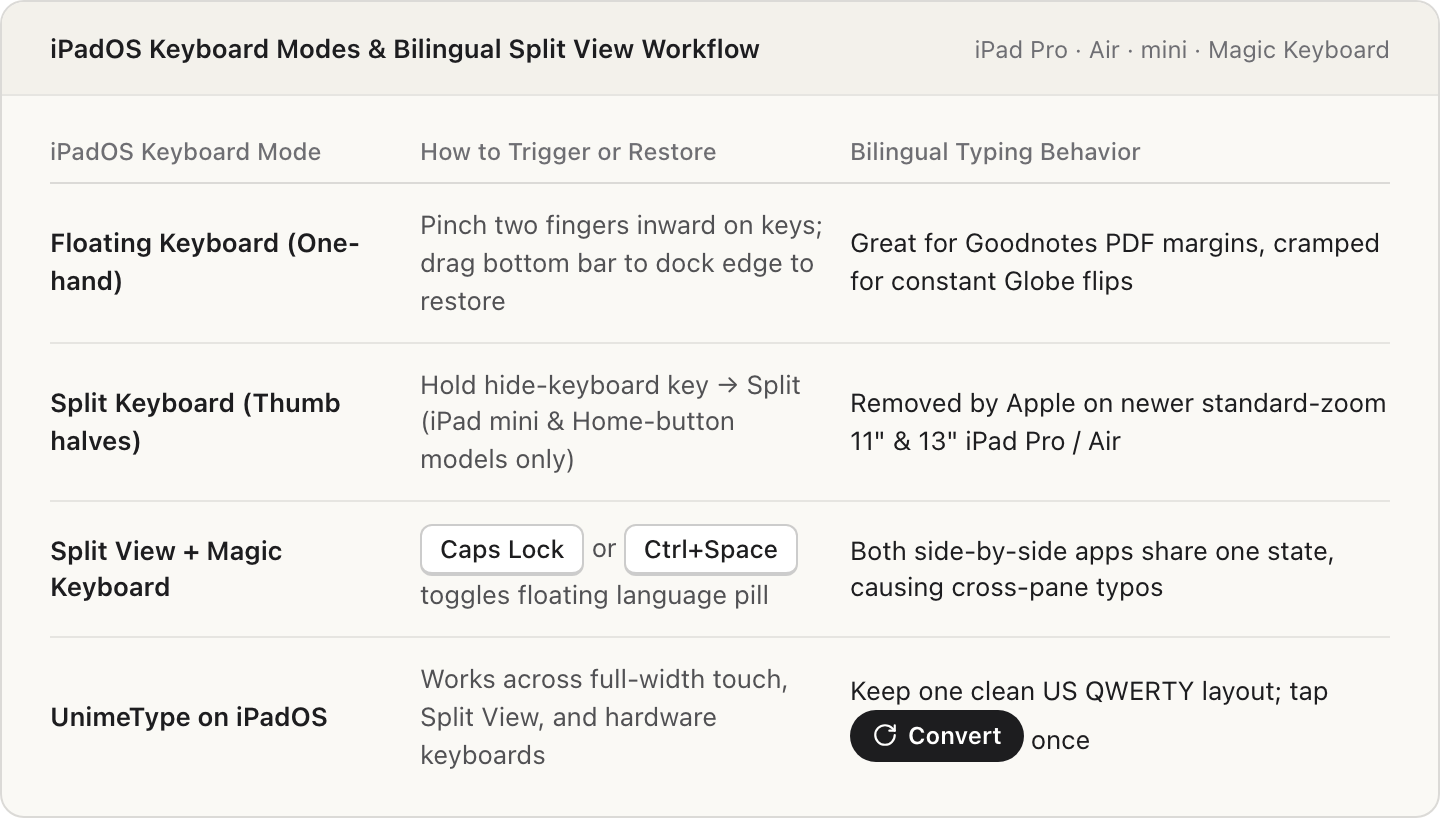
When undocked in Floating mode, you can drag the compact iPhone-sized panel by its bottom bar into any corner so PDF margins in Goodnotes or spreadsheet cells in Numbers stay visible, and glide-type with one finger across English words. To return to standard two-hand typing, drag that bottom bar all the way to the center of the bottom bezel until a gray outline snaps across the screen width.
If you miss the two-half Split Keyboard on a newer iPad Air or iPad Pro, note that Apple restricted Settings → General → Keyboard → Split Keyboard to smaller or older screen geometries. On recent M-series iPads, floating the keyboard to one thumb edge—or pairing a third-party keyboard layout—replaces the retired split view.
Why Magic Keyboard and Split View Complicate Bilingual iPad Work
Adding a second language exposes two uniquely frustrating iPadOS behaviors that rarely show up on an iPhone. First, in Split View or Stage Manager, both side-by-side apps share one global keyboard state: finish a message in Chinese, Japanese, Hindi, or Arabic on the right side of the screen, tap into an English search bar, Figma canvas, or LaTeX note on the left, and the previous script layout immediately hijacks your keystrokes.
Second, attach an Apple Magic Keyboard or Bluetooth mechanical keyboard, and iPadOS puts a tiny floating input pill near the bottom of the screen while binding Caps Lock or Ctrl + Space to language switching. Inside browser apps or remote-desktop sessions, pressing Caps Lock frequently lags by half a beat or toggles uppercase instead of switching scripts, forcing you to reach up and tap the screen just to type three English words inside a native-language sentence.
One US QWERTY Layout Across Touch and Hardware iPad Keyboards
Because our iOS and iPadOS keyboard app runs natively on iPad alongside iPhone (we compared phone-sized options earlier in best keyboard apps for iPhone), we built UnimeType to keep iPadOS locked onto one clean US English QWERTY layout whether you are typing on glass or on a hardware keyboard.
Working side by side in Split View, I leave the iPad on that single English layout across both windows. When replying in Slack, LINE, or WhatsApp in a second language mixed with English project terms, I type the entire thought straight through in plain Latin letters:
ming tian shang wu guo yi xia iPad UI spec, PDF yi jing fang jin Goodnotes le
One tap on Convert in the top bar rewrites the line into 明天上午过一下 iPad UI spec,PDF 已经放进 Goodnotes 了, keeping iPad UI spec, PDF, and Goodnotes untouched. Tap back into Safari, Numbers, or a terminal app on the other half of Split View, and your keyboard is already standard half-width English—no Globe key cycling and no floating input pill getting in the way.
Enabling UnimeType under Settings → General → Keyboard → Keyboards takes thirty seconds (see iOS and iPadOS setup steps), and ordinary typing transmits 0 Bytes over the network while masking sensitive data locally before any on-demand Convert (privacy and protected content). Use iPadOS's two-finger pinch floating trick whenever reading PDFs one-handed on the couch, and keep one zero-switch English layout active when Split View turns your iPad into a real bilingual workstation.
Download UnimeTypeiOS, Android, macOS, Windows, Linux, and ChromeOS
View downloadsNext: I Tested the Top Android and Samsung Keyboard Apps in 2026, and Bilingual Chat Split Them in Two