How to Change Keyboard Language on Windows 11, Mac, iPhone, and Android (And Stop Random Switching)
Most people look up how to change their keyboard language for one of two reasons: either they just set up a new device and need the exact toggle shortcut, or their current computer keeps flipping input layouts mid-task—eating WASD keys in a game, turning $12.50 into 12。50 inside Excel, or popping up a candidate bar when they press V in Figma.
Let's get the native operating-system shortcuts and settings out of the way first, then fix the accidental triggers that cause random switching in the first place.
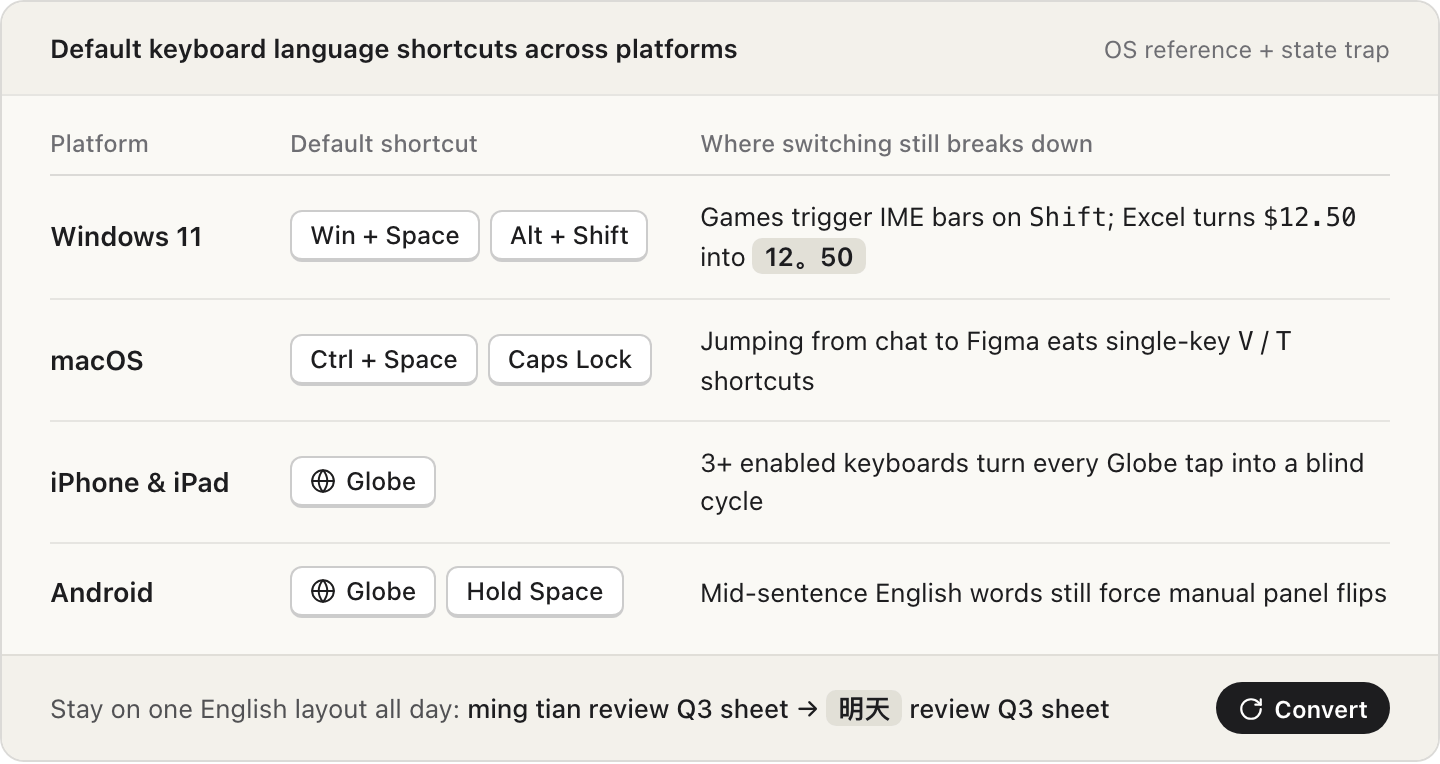
Native Shortcuts to Switch Keyboard Language on Every Device
Every major operating system separates adding a language pack from toggling between active input methods:
- Windows 11 & Windows 10: Press
Win + Spaceto cycle through installed languages with a visual overlay on the right edge of the screen, orLeft Alt + Shiftto toggle silently. Inside Chinese, Japanese, or Korean IMEs,Shift(orCtrl + Space) flips between native script and English mode. To add or reorder layouts, open Settings → Time & language → Language & region, documented in Microsoft's Windows keyboard layout guide. - macOS: Press
Ctrl + Space(or tap theFn / Globekey on Apple Silicon keyboards) to switch input sources. If you use Chinese Pinyin or Japanese Kana, you can also enableCaps Lockto toggle straight back toABCunder System Settings → Keyboard → Input Sources → Edit, covered in Apple's macOS input source documentation. - iPhone & iPad: Tap the
Globeicon in the bottom-left corner to step to the next keyboard, or touch and hold theGlobeicon to jump directly to a specific layout without cycling through Emoji. Add languages under Settings → General → Keyboard → Keyboards. - Android: Tap the
Globeicon next to the Space bar, or touch and hold the Space bar in Gboard and Samsung Keyboard to pick another language from a popup menu.
Two Settings That Stop Accidental Layout Flips on Desktop
Knowing the shortcut only solves half the headache if the operating system keeps changing layouts behind your back. Two default settings account for almost every "ghost switch" complaint on Windows and Mac:
- Unbind
Alt + Shiftand bareShifton Windows 11: Whenever you sprint withShiftand check a scoreboard orfreelook withAltin a game—or useAlt + Shift + Fto format code in an IDE—Windows interprets that chord as a request to swap keyboards. Go to Settings → Time & language → Typing → Advanced keyboard settings → Input language hot keys, click Between input languages → Change Key Sequence, and set both dropdowns to Not Assigned. KeepWin + Spaceas your sole intentional shortcut so games and editors stop triggering the IME bar. - Audit per-window input memory: Both Windows ("Let me use a different input method for each app window") and macOS ("Automatically switch to a document's input source") try to remember which language you last used in each window. That sounds helpful until Slack or Chrome serves both English work channels and native-language DMs: the window remembers the wrong half of your day, and you still type five broken characters into Figma, Overleaf (
\cite{}turning into full-width punctuation), or Terminal before noticing the menu bar icon.
How to Type Two Languages Without Switching Layouts at All
Even after cleaning up every OS hotkey, switching input methods still fails inside a single bilingual sentence. Replying to a colleague in Slack or WhatsApp with two English technical terms inside a Chinese, Japanese, or Hindi sentence forces your pinky or thumb back onto the toggle key four times in ten seconds (see how we unified shortcuts across five OSes in one input method across five platforms).
That is why I stopped toggling active keyboard states altogether and moved my daily typing to UnimeType. My Windows PC, Mac, and phone stay locked to one standard US English QWERTY layout from morning to night:
- In Figma, Blender, Excel, Overleaf, VS Code, and games, every single-key shortcut, backslash, decimal point, and
WASDpress goes straight through as clean half-width ASCII—zero candidate bars, zero punctuation surprises. - When I reply in a bilingual chat, I type the entire thought on that exact same English keyboard—for instance,
ashita Q3 sheet kakunin shite Slack ni okurimasuorming tian xia wu dui Q3 sheet—and press Convert once at the end (Caps LockorOption + Enteron desktop, customizable in setup and shortcuts). Only the romanized native words convert into明日 Q3 sheet 確認して Slack に送りますor明天下午对 Q3 sheet, whileQ3 sheetandSlackremain intact.
On macOS, Windows, and Linux, you can run our open-weight 0.8B, 4B, or 9B transliteration models 100% offline through LM Studio or Ollama; on iOS and Android, ordinary typing transmits 0 Bytes and on-demand conversion masks sensitive spans locally before sending under zero-retention rules (privacy and protected content). Keep your system IME installed as a backup for rare names or offline mobile flights, and let one fixed English layout handle the rest of your day.
Download UnimeTypeiOS, Android, macOS, Windows, Linux, and ChromeOS
View downloadsNext: You Already Know What You Want to Say. Why Check Your Keyboard State First?