Stop Your Input Method From Hijacking Figma, Overleaf, Excel, and Game Shortcuts
To stop an input method (IME) from hijacking single-key shortcuts in Figma, corrupting LaTeX commands in Overleaf, breaking decimals in Excel, or freezing WASD movement in PC games, unbind Windows 11's Left Alt + Shift and bare Shift mode toggles, disable macOS automatic per-document input switching, or keep every window in permanent half-width ASCII with UnimeType and convert bilingual sentences only on demand.
Anyone who works in two languages knows the exact quarter-second when a leftover IME state ruins a shortcut: you reply to one message in Slack or WhatsApp, press Cmd+Tab or Alt+Tab back to your work, and watch V or R pop up a floating candidate bar in Figma, \cite{} turn into full-width 、cite【】, $12.50 become 12。50, or WASD + Shift freeze your character mid-match while wwwwassd piles up in the corner.
Turn off bare Shift and rogue hotkeys on Windows 11
On Windows 11, two default settings cause 80% of accidental shortcut hijacks during gaming and spreadsheet work.
First, Microsoft Pinyin and several East Asian IMEs use a bare tap of the Shift key to toggle between English and native input. Sprint or crouch with Shift in a game, or capitalize a column reference in Excel, and the IME flips back into composition mode right under your fingers. Open Settings → Time & language → Language & region, click the three dots next to your language → Language options → Microsoft Pinyin → Keys, and change Mode switch away from Shift (or unbind it if you switch layouts via Win + Space).
Second, check Windows' legacy input language hot keys under Settings → Time & language → Typing → Advanced keyboard settings → Input language hot keys. Windows still binds Left Alt + Shift to cycle input languages by default—the exact chord designers hold in Figma, Illustrator, and Photoshop to duplicate and constrain an object on canvas. Set Between input languages to (None) so Alt + Shift belongs strictly to your design tools. If you play full-screen PC games, also keep a plain English (United States) — US keyboard entry in your language list and press Win + Space before launching a match so no IME process hooks raw WASD input at all.
Lock per-app input sources on Mac (and where browser tabs break it)
On macOS, open Apple's Keyboard Input Sources settings under System Settings → Keyboard → Text Input → Edit, enable Use the Caps Lock key to switch to and from ABC, and turn off Automatically switch to a document's input source. That stops macOS from guessing the wrong input state behind your back when you Cmd+Tab between windows.
If you spend all day bouncing between native desktop apps like Photoshop, Blender, Terminal, and chat apps, installing a small utility like Input Source Pro takes you one step further: you can force Figma.app, Blender.app, and Cursor.app to switch automatically to US ABC the instant their window gains focus.
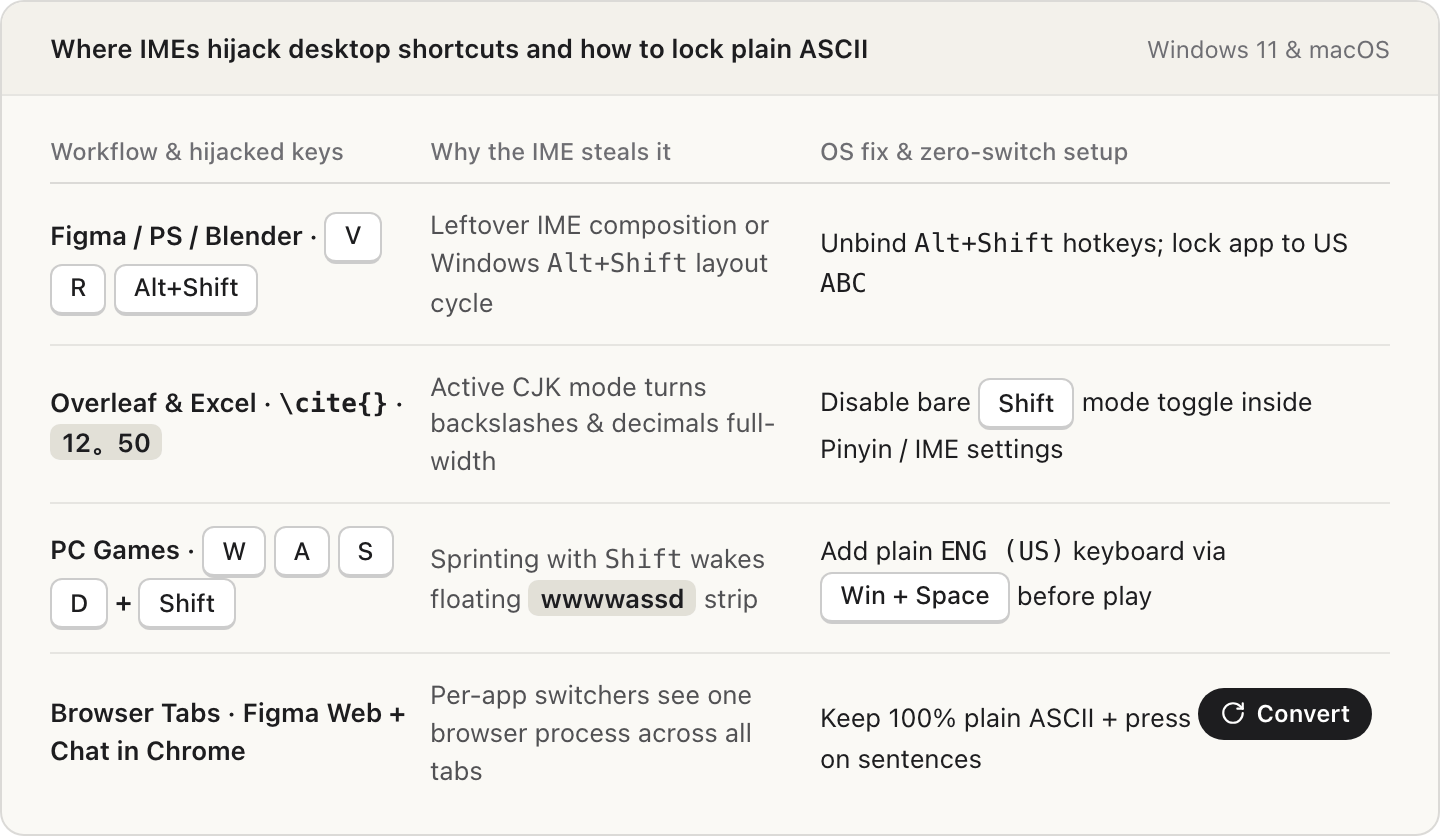
Per-app rules work well until two very common modern workflows get in the way. The first is the web browser: open Figma in Chrome, edit a paper in Overleaf in the next tab, check a Google Sheet in the third tab, and answer a client in Web WhatsApp or Slack in the fourth. To macOS and Windows, all four tabs belong to a single application (Google Chrome or Arc), so per-app switchers cannot keep Overleaf in ASCII while keeping your chat tab in Pinyin or Kana. The second happens right inside Figma or Notion itself when you select the text tool (T) to leave a bilingual review note on a frame (zhe ban button padding gai cheng 12px) and forget to switch back before pressing V to move the next layer.
Keep every key in plain ASCII and convert sentences on demand
The cleanest way to make single-key shortcuts, LaTeX backslashes, half-width decimals, and WASD movement immune to input-method state is to never put the keyboard into live composition mode in the first place.
With UnimeType on macOS, Windows, and Linux, every physical key on your keyboard emits plain half-width US English ASCII 100% of the time. Press V, R, T, or Alt + Shift + Drag in Figma, type \alpha and $12.50 in Overleaf and Excel, or jump straight into a game—there is no pre-edit buffer waiting to swallow your keystrokes. When you actually want to write a bilingual comment or chat reply, you type the romanized words and English terms together in that same ASCII stream (zhe ban hai bao zai Figma li gai hao le, PDF fa ni Slack le) and press Caps Lock or Option + Return (configurable in setup and shortcuts) once at the end of the sentence to convert it in place.
When you sit down to write a long monolingual article full of rare characters, your tuned OS IME or rime-ice is still one shortcut away. For the other eight hours of switching across Figma canvases, LaTeX equations, spreadsheets, games, and bilingual chat tabs, staying in plain ASCII all day means your shortcuts work on the very first press every time.
Download UnimeTypeiOS, Android, macOS, Windows, Linux, and ChromeOS
View downloadsNext: I Tested Every Major iPhone Keyboard App in 2026, and Bilingual Typing Split Them in Half