Why Your iPhone or Android Keyboard Lags After an Update (and Four Settings That Fix It)
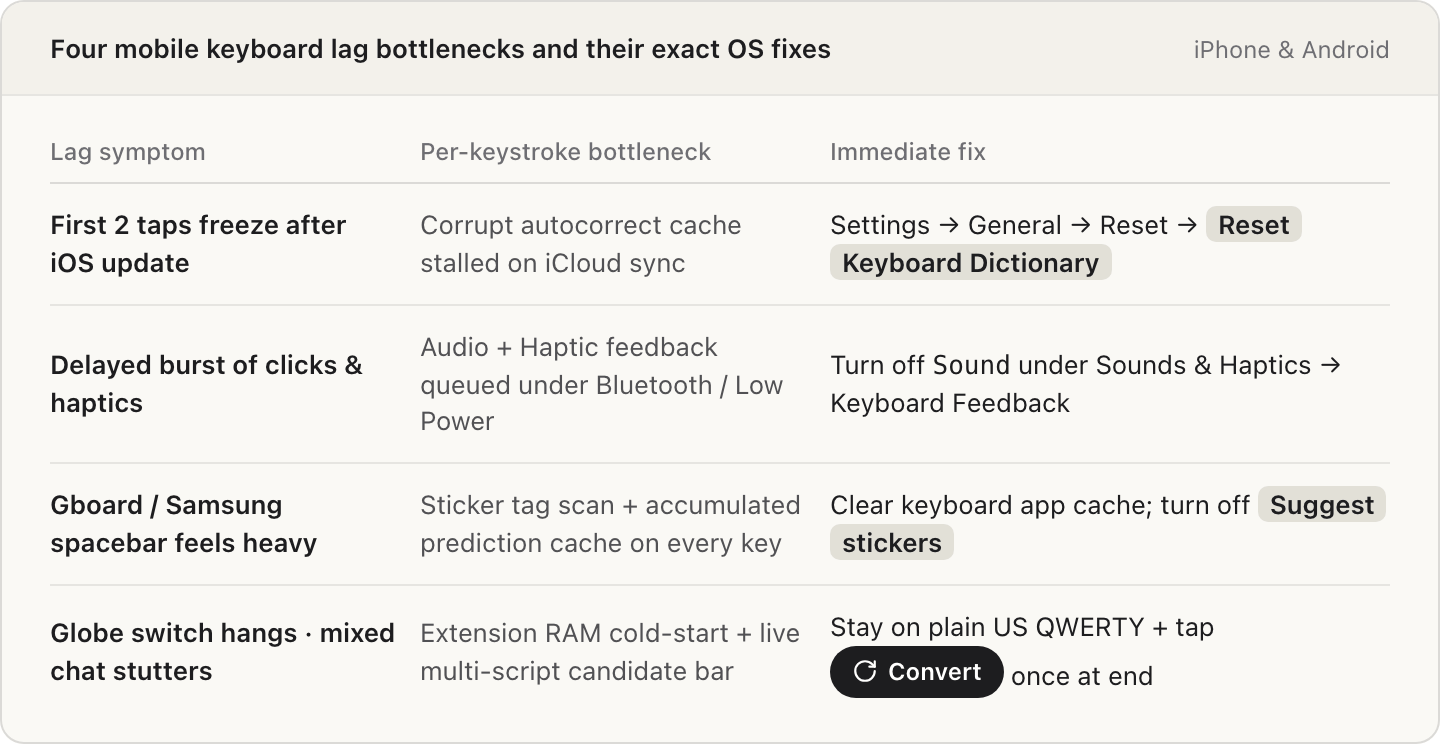
Most iPhone and Android keyboard lag comes from per-keystroke software bottlenecks rather than slow hardware: resetting a corrupt iOS Keyboard Dictionary, turning off Keyboard Feedback sound under Bluetooth or Low Power Mode, clearing Gboard or Samsung Keyboard sticker caches, and switching bilingual chats to a zero-candidate QWERTY keyboard like UnimeType eliminates the freeze within a minute.
You usually notice the symptom right after a major OS update when replying in WhatsApp or Slack. Your thumbs tap out four words at normal speed, the screen freezes on the first two letters for half a second, and then all twelve characters spill into the text box at once while the rest of the phone still scrolls at a smooth 120 Hz.
Reset the iPhone dictionary and haptic queue first
On iPhone, the single most common cause of sudden typing delay after an iOS update is a corrupted personal autocorrect cache trying to reconcile over iCloud. Every time your thumb hits a letter, iOS queries that local database before drawing the key popup.
Open Settings → General → Transfer or Reset iPhone → Reset → Reset Keyboard Dictionary and enter your passcode. This wipes only the learned autocorrect cache without touching your photos, apps, or saved passwords. Immediately after that, check Settings → Sounds & Haptics → Keyboard Feedback: if both Sound and Haptic are enabled while Low Power Mode or Bluetooth audio is active, iOS can queue audio-haptic triggers behind system interrupts. Turning off Sound (or both) removes a noticeable fraction of first-tap hesitation.
Finally, open Apple's iPhone keyboard list under Settings → General → Keyboard → Keyboards. Leaving four or five unused language keyboards or sticker packs active forces iOS to cycle through extra extensions and keep larger language models warm in a tight memory sandbox. Trim the list down to the one or two keyboards you actually use every day.
Clear Android sticker caches and per-keystroke bloat
On Android phones running Gboard or Samsung Keyboard, lag usually builds up over months as clipboard history, emoji kitchen suggestions, and multilingual prediction caches grow.
On Pixel, OnePlus, or Xiaomi with Gboard, go to Settings → Apps → See all apps → Gboard → Storage & cache → Clear cache (leave Clear storage alone unless you want to reset your layout preferences). Then open Gboard Settings → Emojis, Stickers & GIFs and turn off Suggest stickers while typing. Every keystroke no longer has to scan sticker tags in the background.
On a Samsung Galaxy phone, open Settings → General management → Samsung Keyboard settings, turn off Suggest stickers and unnecessary Text shortcuts sync, and if One UI feels sluggish when swiping the spacebar, disable unused language packs so the prediction engine stops polling three dictionaries at once.
Why bilingual keyboards still stutter across apps
Even on a brand-new flagship phone with a clean dictionary cache, bilingual typists run into a structural kind of lag that single-language users rarely notice.
First, cross-script input methods (Chinese Pinyin, Japanese Kana/Romaji, Hindi Hinglish, or Arabic phonetic keyboards) recompute a live candidate lattice on every single letter you tap. Type a fast mixed sentence like wo gang fa le Figma link dao Slack and the IME spends every keystroke trying to segment Figma and Slack as phonetic syllables while resizing the candidate bar above the keys.
Second, mobile operating systems strictly cap the RAM of keyboard extensions (around 50 to 70 MB on iOS). Every time you jump from an English Slack thread into a family WhatsApp or LINE chat and tap the Globe key to load a heavy CJK or Indic keyboard, the OS often has to cold-start that keyboard extension from disk, leaving your first two taps hanging in mid-air.
Keep ordinary keystrokes weightless and convert once
That per-keystroke overhead is why I stopped running a live candidate bar on my phone for everyday bilingual messages. With UnimeType on iPhone and Android, the keyboard stays a plain, lightweight US QWERTY layout all day.
While my thumbs are moving, UnimeType runs zero live candidate lookups, zero sticker searches, and zero network requests (covered in privacy and protected content). Every letter lands in the text box instantaneously as raw ASCII: kal 4pm Google Meet pe design deck dekhte hain, link Slack pe bheja hai. Only when the sentence is finished do I tap Convert once, turning the Hinglish or Pinyin words into native script while Google Meet and Slack stay untouched.
For long single-language notes or one-handed swipe typing on a crowded train, a freshly reset Apple Keyboard or Gboard still feels great. Whenever your day jumps across Slack, Mail, Safari, and bilingual chats—and you never want the Globe key or a live candidate bar slowing down your thumbs—keeping one plain QWERTY keyboard open all day fixes both the lag and the layout switching at the same time.
Download UnimeTypeiOS, Android, macOS, Windows, Linux, and ChromeOS
View downloadsNext: I Tested Every Major iPhone Keyboard App in 2026, and Bilingual Typing Split Them in Half