
UnimeType vs. Gboard: When You Mix Languages in One Sentence
Gboard shares a single keyboard only when two languages use the same alphabet. When you mix Chinese, Japanese, Arabic, or Russian with English in the same sentence, UnimeType lets you type the whole thought on one English keyboard and tap Convert once — keeping English words, code, and numbers intact.
Where Gboard’s multilingual prediction stops: the script boundary
Gboard’s "Multilingual typing" works well when your two languages share the Latin alphabet, like English and Spanish or English and German. Once you combine English with a non-Latin writing system — Chinese, Japanese, Hindi, Arabic, or Russian — Gboard puts each script on a separate keyboard layout behind the Globe key.
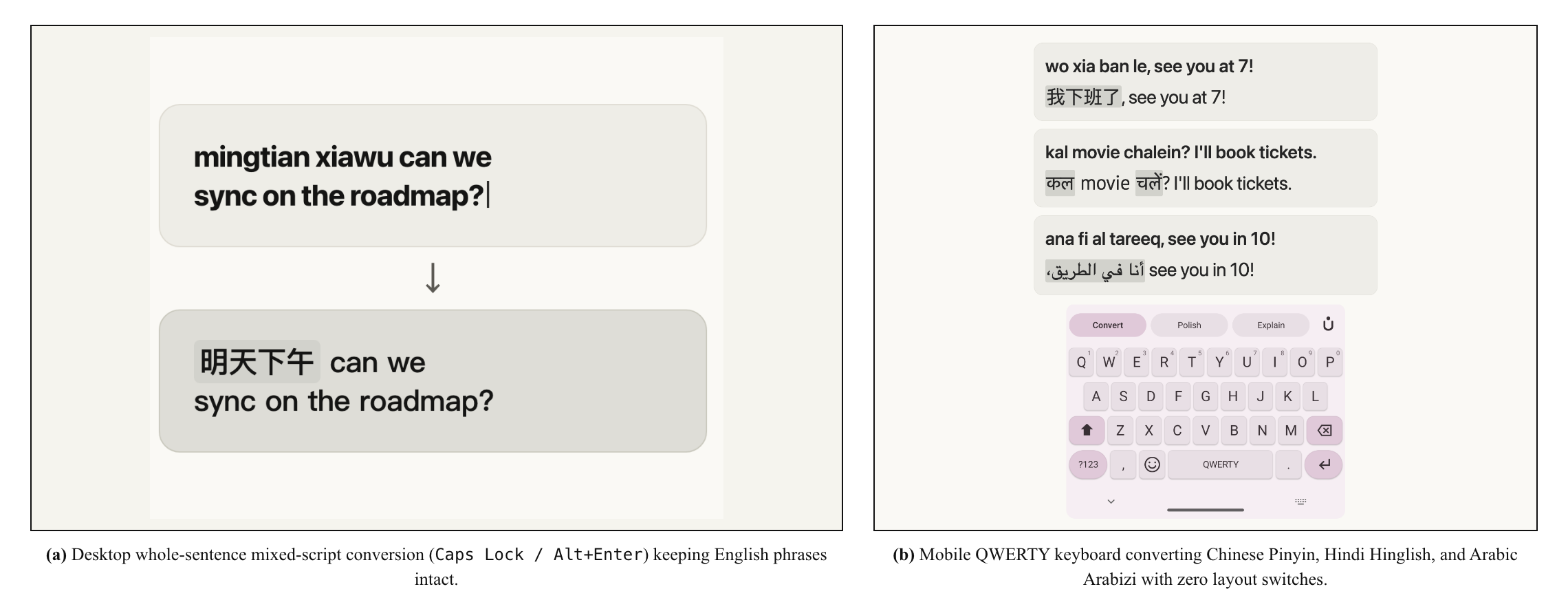
Four layout switches vs. zero: typing one nine-word message
Suppose you want to send "我刚 push 了 new build,明天 review roadmap。" ("Just pushed a new build, will review roadmap tomorrow.") In Gboard, you type "wo gang" and pick 我刚 from the candidate bar, tap the Globe key to switch to English, type "push", tap the Globe key back to Chinese for "le" (了), switch to English again for "new build", and repeat for the second clause — four layout switches for nine words. And if you try using Gboard’s built-in Google Translate bar instead, it translates the entire sentence into 100% Chinese, wiping out your intentional English terms.
In UnimeType, you stay on one standard English QWERTY layout, type "wo gang push le new build, mingtian review roadmap" straight through, and tap Convert once. Only the Pinyin words convert to Hanzi; "push", "new build", "review", and "roadmap" stay in English.
Using Gboard and UnimeType together on the same device
UnimeType is not built to replace Gboard’s one-handed glide typing, GIF search, or voice dictation. You can keep Gboard enabled for single-language swipe typing and voice input, and use UnimeType when writing mixed-script messages that combine Pinyin, Romaji, Hinglish, Arabizi, or Translit with English.