Three Ways People Try to Type Without Switching Keyboards (And Where Each Breaks)
Spend enough time writing messages that mix Chinese and English, and your left pinky eventually stages a quiet revolt against Shift and Caps Lock. Sooner or later, almost everyone searches for the same thing: a keyboard that lets you type without switching input modes at all.
When you actually look into the tools people recommend for "no-switch typing," though, it turns out they are talking about three completely different mechanisms. Over the past few months I installed and lived with all three on my own machines to see where each one shines — and the exact moment each one breaks down.
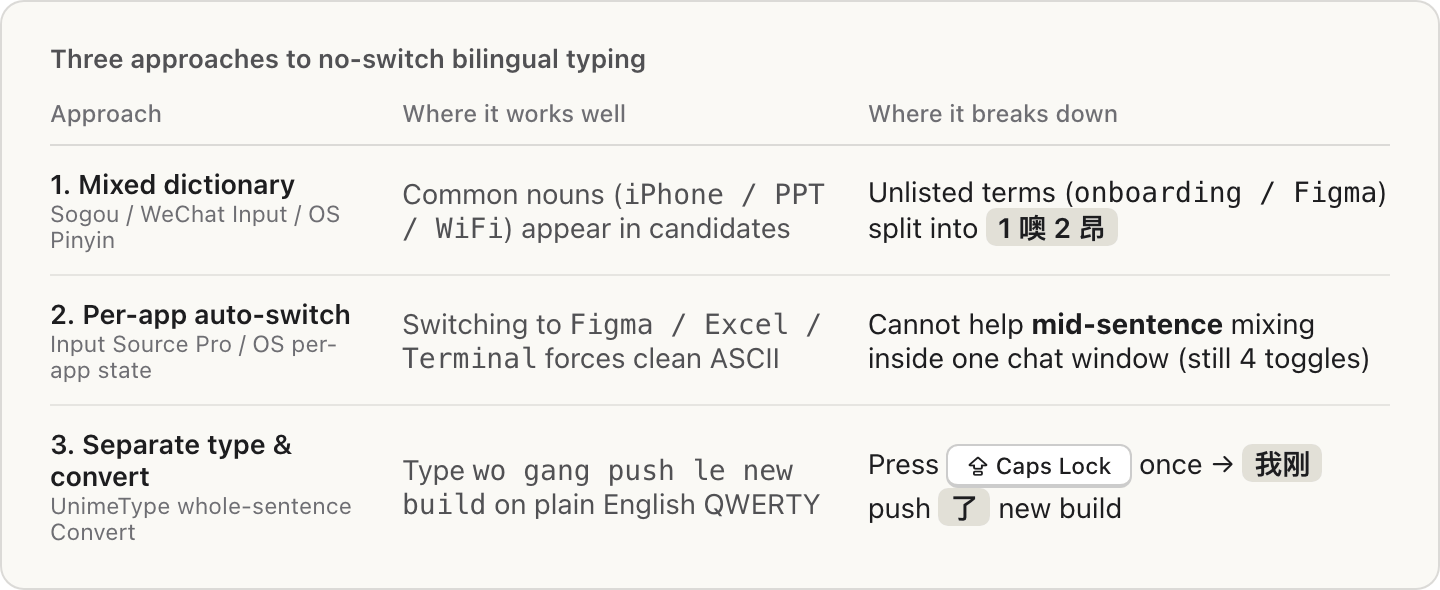
The first approach is the built-in "mixed-input dictionary" inside mainstream Pinyin IMEs like macOS Pinyin or Rime.
The idea is simple enough: pack the Chinese dictionary with common English nouns so you can type them without leaving Chinese mode. As long as your English vocabulary stays inside words like iPhone, PPT, WiFi, or App, it works fine — you type the letters and the English word shows up in the candidate bar. The trouble starts the moment you write a real everyday or work message like "这版海报在 Figma 里调大了字号,Excel 里的 VLOOKUP 公式也改好了." Because Figma and VLOOKUP aren't top candidates in every consumer dictionary, the Pinyin engine slices those letters into bizarre Chinese homophones, forcing you to backspace the whole mess and press Shift anyway. Dictionary-based mixed typing only works when your English words happen to be on the IME's allowlist.
The second approach is per-app automatic switching with utilities like Input Source Pro or a Hammerspoon script — essential whenever different open apps demand completely different input states.
Instead of guessing words inside a sentence, these tools watch which window has focus. Think about how often you bounce between paired apps all day: Figma + Slack (where single-key V, F, and T canvas shortcuts break if Pinyin stays active), Excel + WhatsApp (where =VLOOKUP(...) needs half-width commas and parentheses), Overleaf + Slack (where \cite{} turns into 、cite in Chinese mode), or jumping between a PC game (WASD movement keys) and an in-game chat box or Discord. Per-window auto-switchers cure that cross-window amnesia at the app border, yet they still hit a wall the moment a single sentence mixes languages inside one window. When you are sitting inside a chat box typing "我刚 push 了 new build,明天看下 metrics," Input Source Pro has already done its job at the window border — leaving you to hit Caps Lock four times mid-sentence on your own.
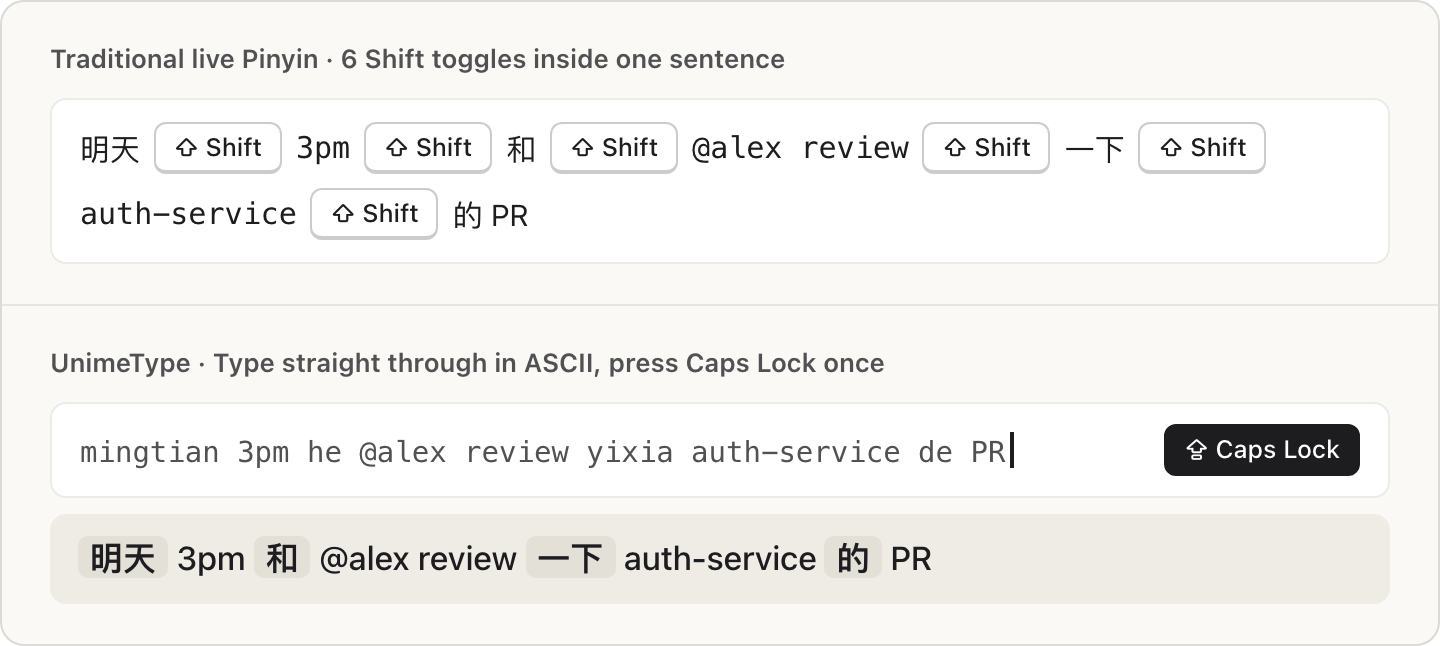
Testing those first two made the third approach click for me: getting rid of the live Chinese/English mode during typing altogether, and separating keystrokes from script conversion.
That is how I use UnimeType for mixed messages every day. While I'm typing, there is no active Chinese state or English state — my keyboard stays on plain English QWERTY from start to finish. I type both the Pinyin syllables and the English terms straight through in one pass: wo gang push le new build, ming tian kan xia metrics. No candidate bar pops up to hijack the spacebar, and it doesn't matter whether an English identifier or flag exists in any dictionary. Once the sentence is on screen, I press my Convert shortcut once (you can configure the trigger in Setup and shortcuts). The Pinyin segments turn into Chinese in place, and push, new build, and metrics stay untouched.
After trying all three, I ended up keeping both the second and third tools on my Mac because they solve two different layers of the problem.
Input Source Pro stays running in the background to guard window boundaries — making sure Figma, Excel, Overleaf, or a game window always stays in pure English while keeping system Pinyin handy whenever a passage is dense with rare characters that call for scanning a candidate list one by one. Whenever I'm in Slack, WhatsApp, LINE, or Mail writing everyday bilingual messages full of English names, file links, or café addresses, I stay on the English layout, type the whole thought straight through, and let UnimeType convert the sentence at the end. You can try that exact workflow on the Latin-to-Chinese keyboard page.
Download UnimeTypeiOS, Android, macOS, Windows, Linux, and ChromeOS
View downloadsNext: Cloud LLMs Are Smarter With a Good Prompt. Why Did We Still Train 0.8B, 4B, and 9B Local Models?