How to Type Chinese on an English Keyboard Without Switching Back and Forth
Every computer and phone includes a built-in Pinyin keyboard in Settings for pure Chinese, but its floating candidate bar interrupts every English word. With UnimeType, you type Chinese Pinyin and English straight through on your standard English keyboard — like "wo gang push le new build." — and tap Convert once to get "我刚 push 了 new build." without switching modes.
Built-in OS Pinyin keyboards
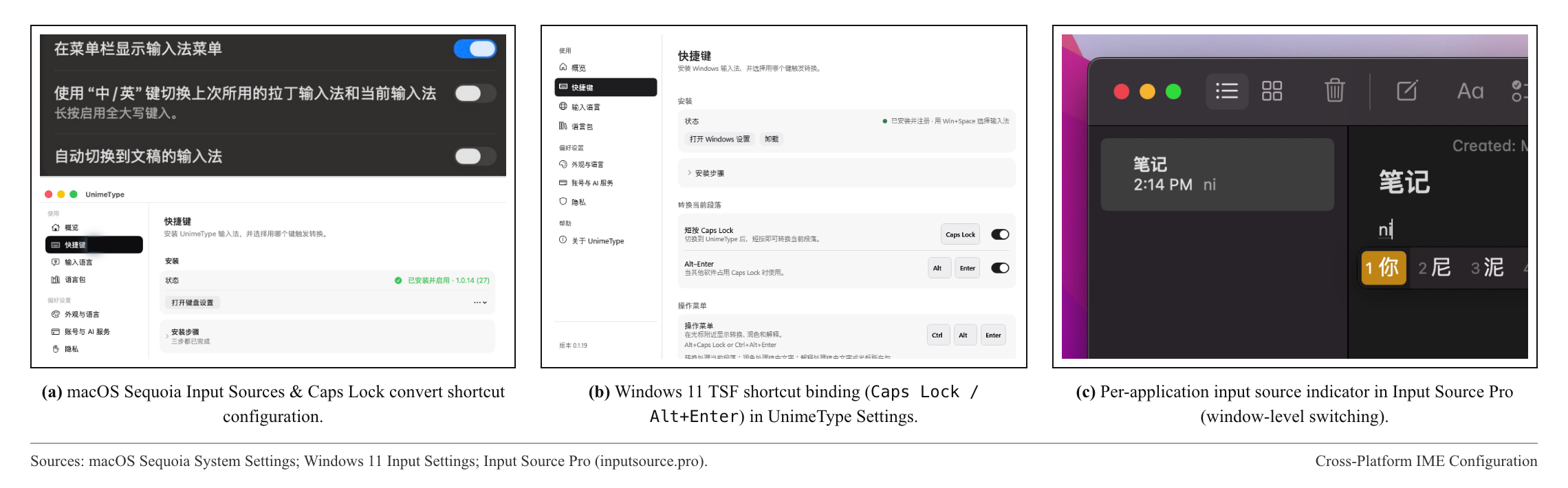
For long, 100% Chinese documents or offline writing, your operating system’s built-in Pinyin keyboard is already pre-installed. On a Mac (Apple Support), open System Settings → Keyboard → Input Sources → Edit → + → Chinese, Simplified → Pinyin, and turn on "Use the Caps Lock key to switch to and from ABC" so you do not have to chord Ctrl + Space.
On Windows 11 (Microsoft Support), go to Settings → Time & language → Language & region → Add a language → Chinese (Simplified); watch out for Microsoft Pinyin’s internal Shift toggle, which flips between Chinese and English inside the Chinese layout itself. On iPhone (iOS Keyboard Guide) and Android (Gboard), add Chinese, Simplified → Pinyin under Keyboard settings.
Rime, Sogou, and per-app switching
If you write heavy Chinese prose and want custom dictionaries or double-Pinyin (Shuangpin) schemas, desktop engines like Rime (Squirrel on macOS, Weasel on Windows) or Sogou Pinyin give you deep candidate control. If your main annoyance is jumping between an all-English IDE (VS Code, Cursor, Terminal) and an all-Chinese WeChat window, macOS utilities like Input Source Pro automatically switch your input source whenever you Alt-Tab between apps.
Where both approaches hit a wall is inside a single bilingual sentence. Because candidate-bar IMEs intercept every keystroke as Pinyin, typing "zhege PR hai cha ge unit test" ("This PR is still missing a unit test") or "git checkout" mid-sentence still forces you to hit Shift or Caps Lock before and after every English phrase.
Mixed Chinese and English in one sentence
Suppose you want to send "我刚 push 了 new build,明天 morning 看一下 metrics" ("Just pushed a new build, will check metrics tomorrow morning"). With a traditional Pinyin IME, that single line takes four mode switches, and forgetting one toggle causes the candidate bar to swallow your Enter key or turn "shao bing" into 烧饼 ("flatbread") instead of 少冰 ("less ice").
With UnimeType, you stay in English mode from the first letter to the period: type "wo gang push le new build, mingtian morning kan yi xia metrics" with zero popups, then tap Convert once. UnimeType reads the full sentence context to convert the Pinyin spans while keeping "push", "new build", "morning", and "metrics" untouched.